
Quick Setup Steps
-
Log in to Xtime
-
Navigate to the dealership you wish to connect.
-
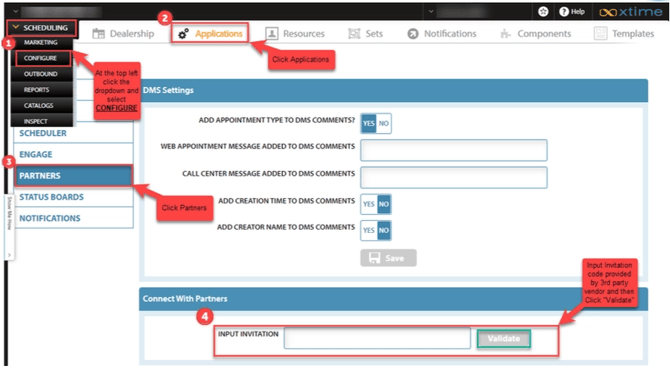
Navigate to that dealership's Configure Application.
-
Once in the Configure application, navigate to the Partners area under the Applications tab.
-
Find the Connect with Partners section and enter code provided in our email into the Input Invitation field and select Validate.
-
If the invitation is valid, information about the partner company will be shown. If the company is the one you would like to connect with, select Confirm. Otherwise, select Cancel.
-
-
Once confirmed, both you and your partner company will be connected.
Helpful Integration Pointers
Ensuring Service Capacity
Toma sees the exact same availabilities as in your web scheduler, not your internal Xtime configuration!
To ensure your web scheduler availabilities match those that you see in your internal Xtime configuration:
-
Log in to Xtime.
-
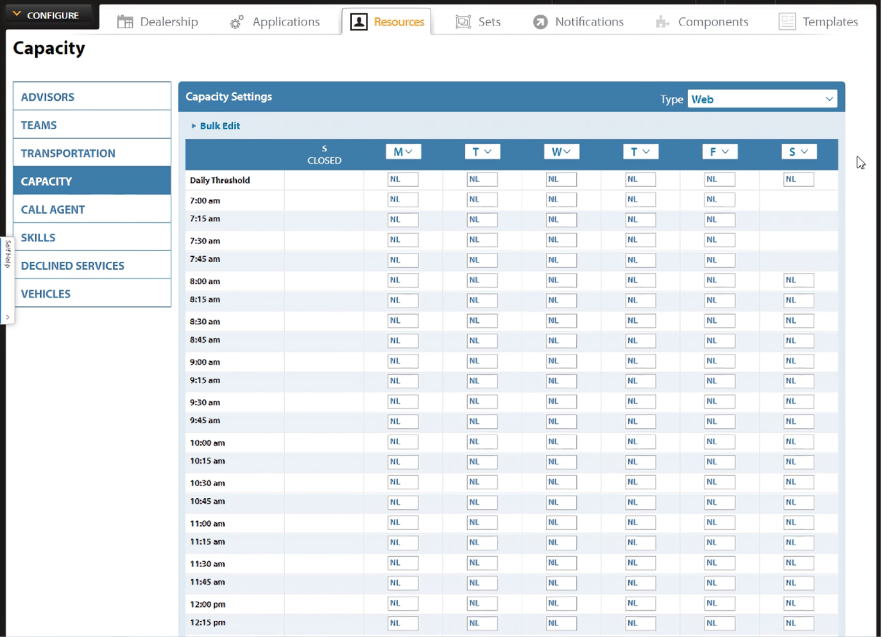
Navigate to Configure > Resources > Capacity > Type: Web.
-
Ensure all values across the board say “NL”, which means “No Limit”. That way, your internal capacities determine your availabilities in Toma.
Capacity & Booking Limits
Toma cannot exceed the configured booking threshold.
For appointment type “Web”, no additional capacity limits will be set within Toma. Web availability is governed by the Shop and Advisor capacity levels configured within Xtime. Toma cannot overbook appointments beyond those defined Shop and Advisor limits.
Web Appointment Configuration Guidelines
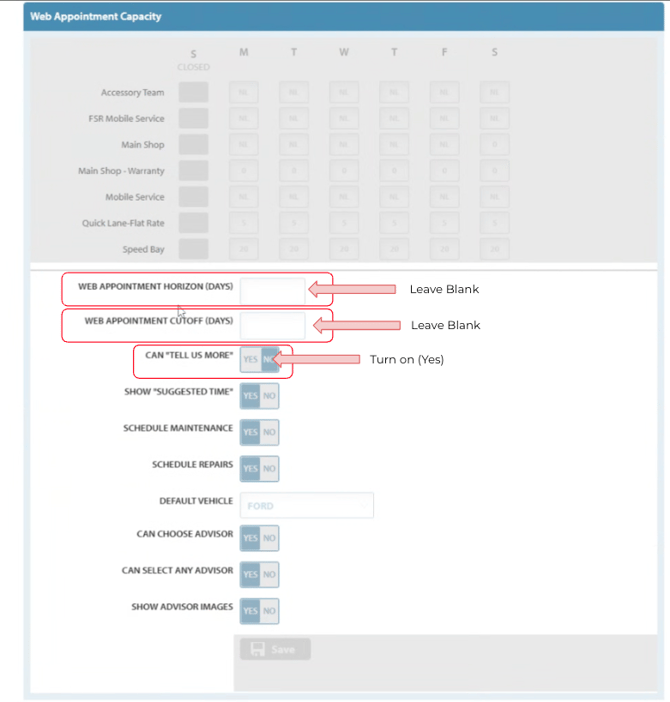
The following settings help ensure maximum availability, flexibility, and booking efficiency when configuring Web appointments.
- Web Appointment Horizon (how far in advance customers can book): Leave this field blank to avoid limiting availability unnecessarily.
- Web Appointment Cutoff (Days): Leave this field blank to allow for the most efficient and flexible booking experience.
- “Tell Us More” Field: Optional, but we recommend enabling this to collect additional details from customers and improve appointment preparation.
Resolving “Other / Other” for Make & Model
If you are seeing “Other / Other” listed as the vehicle Make and Model, this typically means the vehicle is not currently supported in your system.
To resolve this:
- Navigate to Configure > Resources > Vehicles
- Add the vehicle to your list of supported vehicles (if it is a vehicle your shop services)
Important:
To avoid creating duplicate vehicle records, Toma attempts to book appointments using the provided VIN whenever possible. If the VIN decodes to a vehicle that is not listed as supported in your system, the appointment will fail and appear as “Other / Other”
Ensuring all serviceable vehicles are added to your supported vehicle list will prevent booking failures.