
Test Call Guide
How to Properly Test Toma Before Going Live
Testing is one of the most important steps before launch.
You understand your dealership’s processes, edge cases, and customer expectations better than anyone. That context is critical. We recommend starting conservative with core scenarios and essential routing.
Over time, we can layer in additional instructions, custom handling, and complex transfers. Giving the AI time to learn and adjust leads to a much smoother long-term rollout than trying to introduce everything at once.
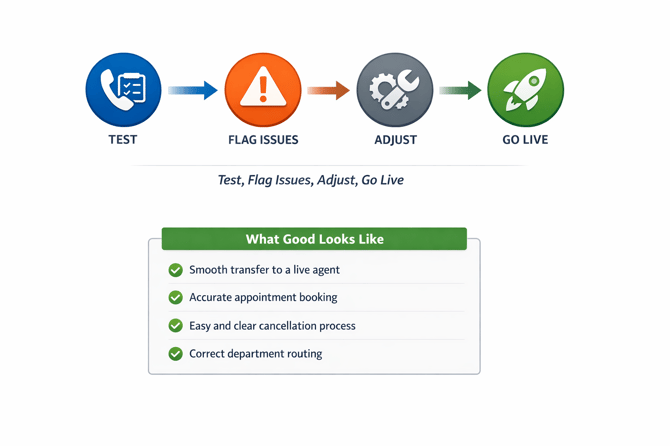
Step 1: Test Core Call Flows
Please place test calls and walk through the following real-world scenarios.
How to Find Your Test Number
Go to: Settings → Channels → General
Use the phone number listed there to place your test calls.
Calls to Make
When testing, please complete each of the following scenarios:
- Ask to speak to a live agent
- Book an appointment for general maintenance (oil change, tire rotation, etc.)
- Schedule a recall appointment
- Transfer to a specific person in the service department by name
- Ask for a status update on a vehicle currently in service
- Request a different department (Parts or Sales)
- Ask about a non-OEM vehicle
- Cancel an appointment that was previously scheduled
As you test, behave like a real customer. Use natural language. Interrupt occasionally. Rephrase your request. This helps validate real-world performance and ensures Toma handles variations properly.
Step 2: Flag Issues
If anything does not work as expected, use the Feedback button in your dashboard.
Submitting feedback:
- Creates a ticket directly for our support team
- Links us to the exact call
- Allows us to quickly adjust configuration before go-live
Please watch this short video for instructions: